Think, plan, and
deliver together
Collect ideas as a mind map, track progress on a Kanban board, and keep an eye on the schedule in the Gantt chart — always on the same content. Every task carries an assignee, dates, priority, status, tags, and attachments.
Free to try. No credit card. Your content stays encrypted.
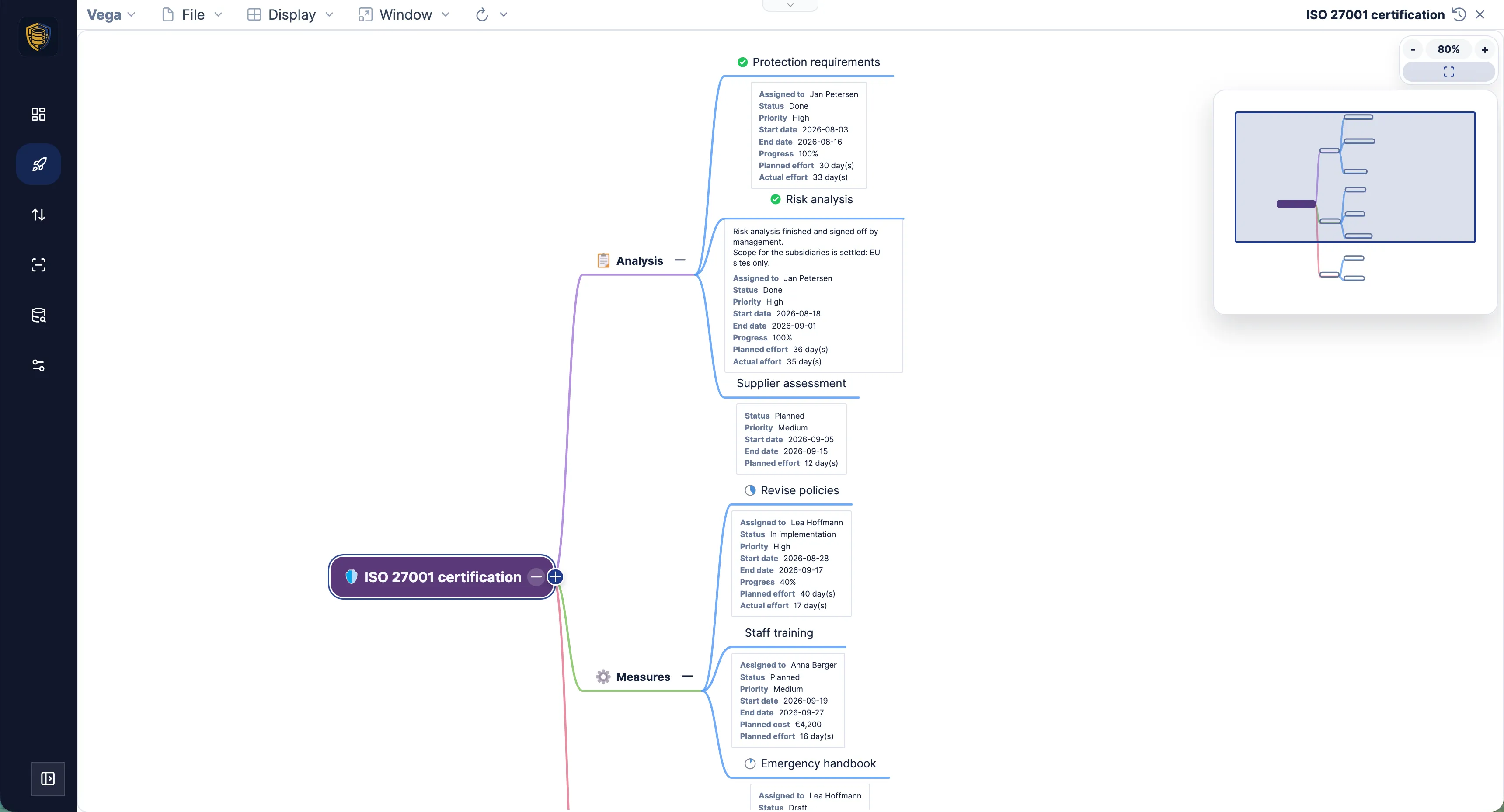
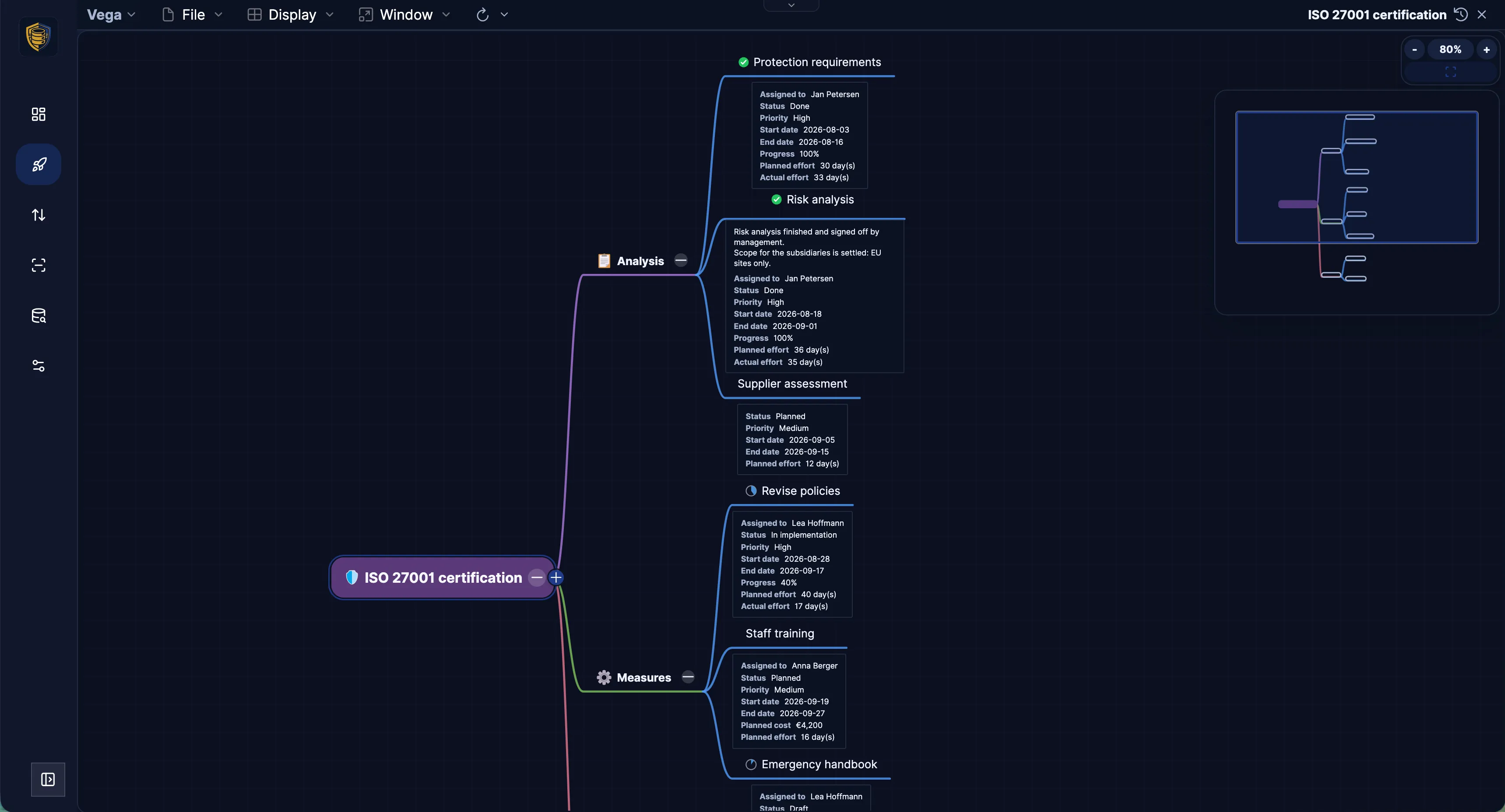
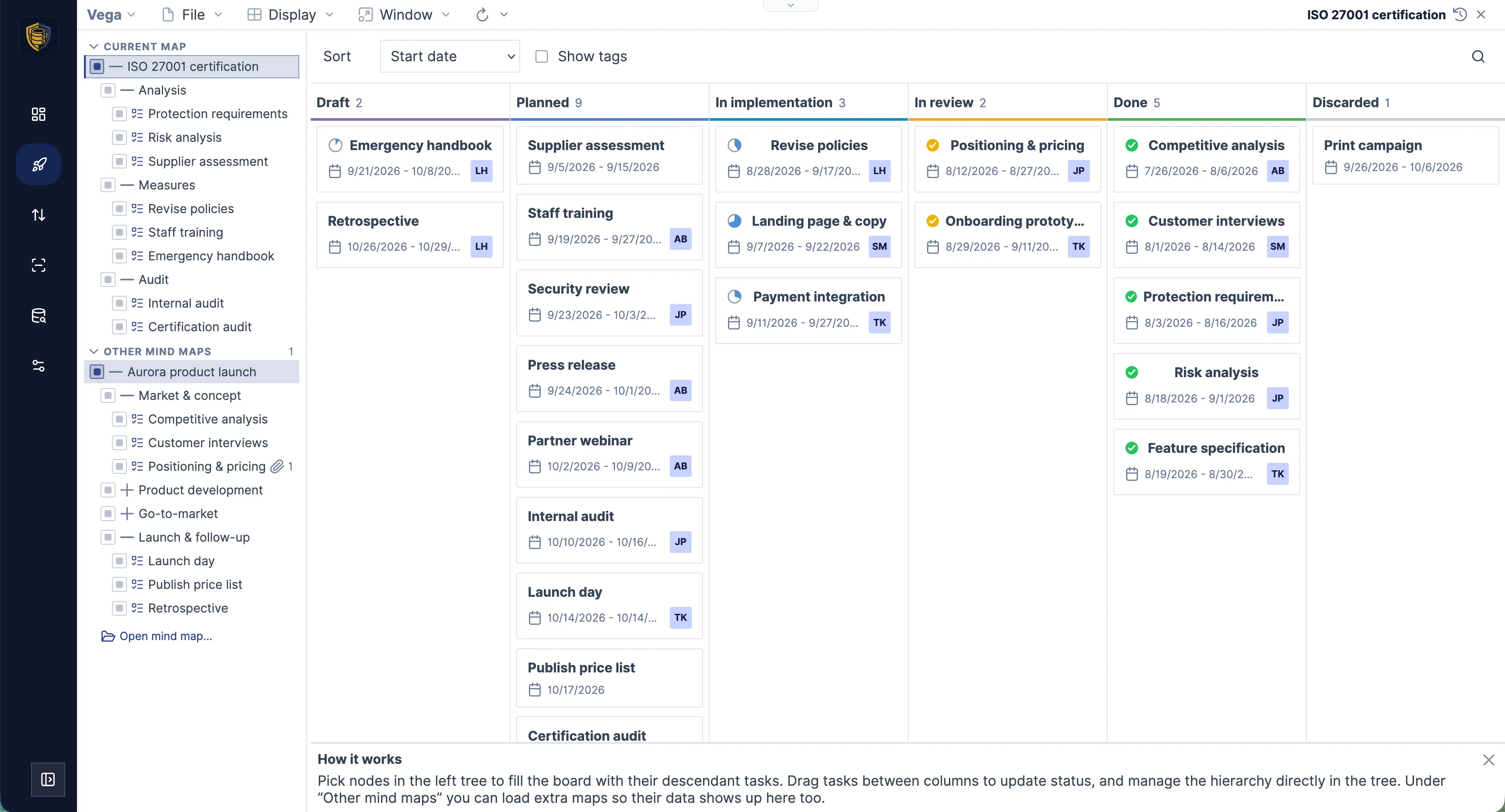
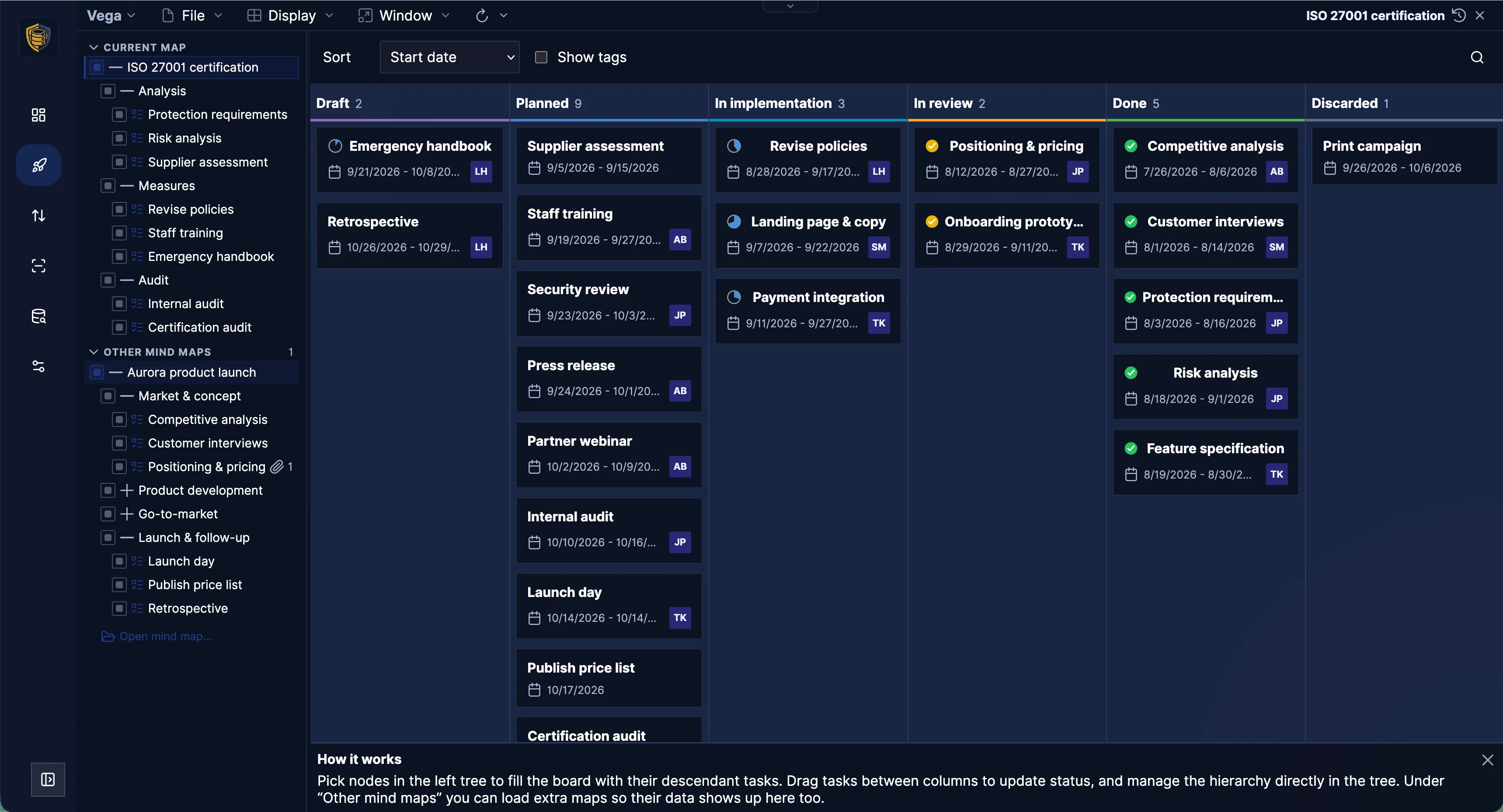
One tree, four ways to look at it
The map is the plan
Vega starts where the ideas are still unsorted and carries them through to the schedule. You capture an idea as a node; the moment you add an assignee, dates, priority, and status, that same idea is also a task. Nothing is copied between views — you do not keep a mind map and a project plan.
- 1
Brainstorm
Open a map and write at the speed of thinking. Drag a topic under a new parent when the structure becomes clearer.
- 2
Turn nodes into work
Fill in assignee, dates, priority, and status on the node you already wrote. No second dataset.
- 3
Share the load
Each person sees what they own, on the board and on the timeline.
- 4
Watch and look back
Follow the project on Kanban and Gantt, then use history to see what actually changed.
Vega is named after the bright navigational star in the constellation Lyra — the star sailors steered by when no landmark was in sight.
Four views, one shared structure
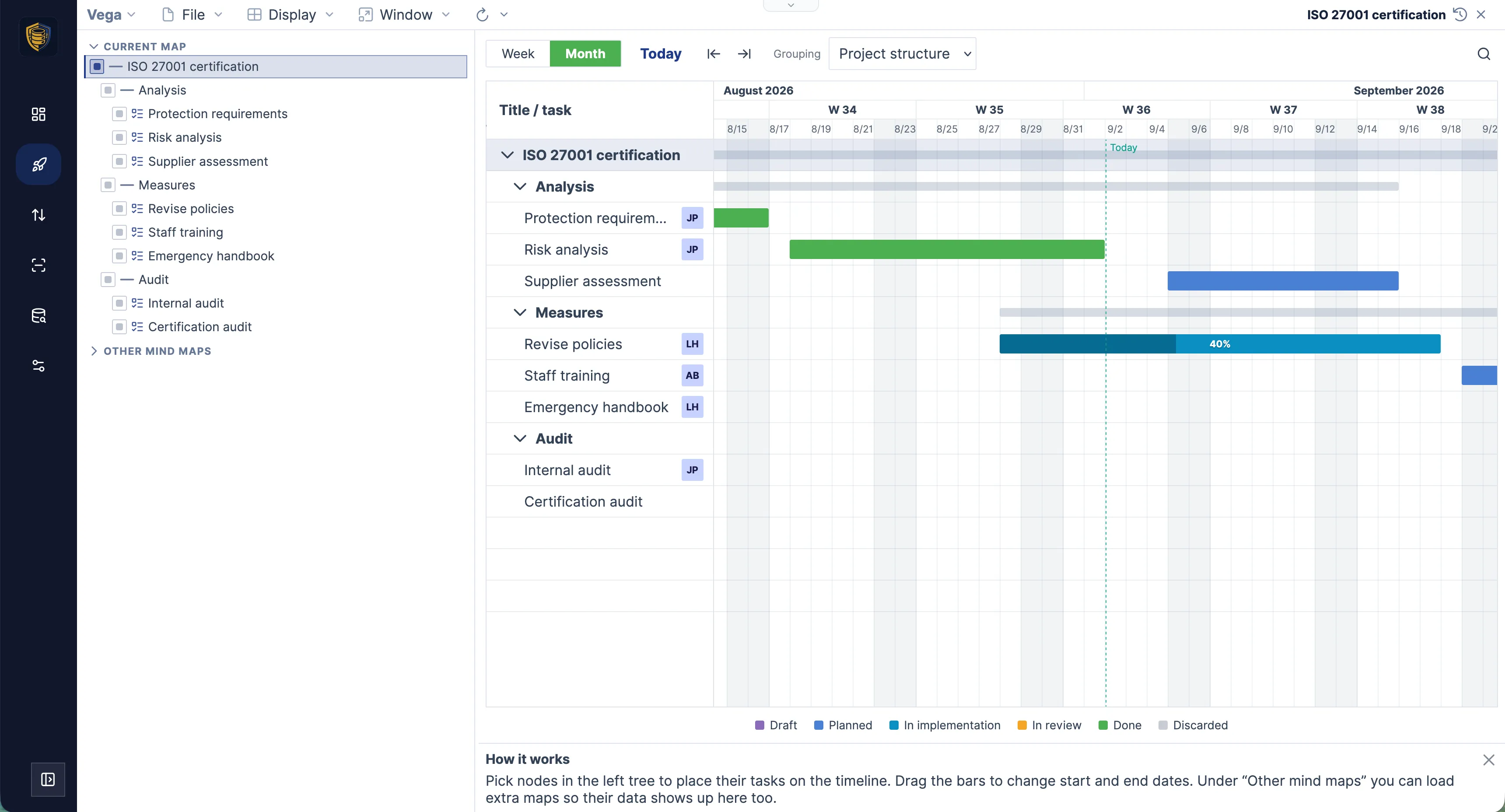
Switching to Kanban, Gantt, or the spreadsheet does not create a second dataset. It shows the same nodes in another shape, and every change flows back immediately.
Mind map
Develop ideas spatially. Drag branches to a new parent, collapse and expand levels, and write from the keyboard. Nodes carry colours, shapes, fonts, and icons — emoji or your own images. Markdown notes sit on the topic itself.
Kanban
The same tasks as a board by status — from draft through planned, in implementation, and review to done or discarded. Dragging a card into another column changes its status. Sort by start, end, or priority and search across title, text, tags, assignee, and status.
Gantt
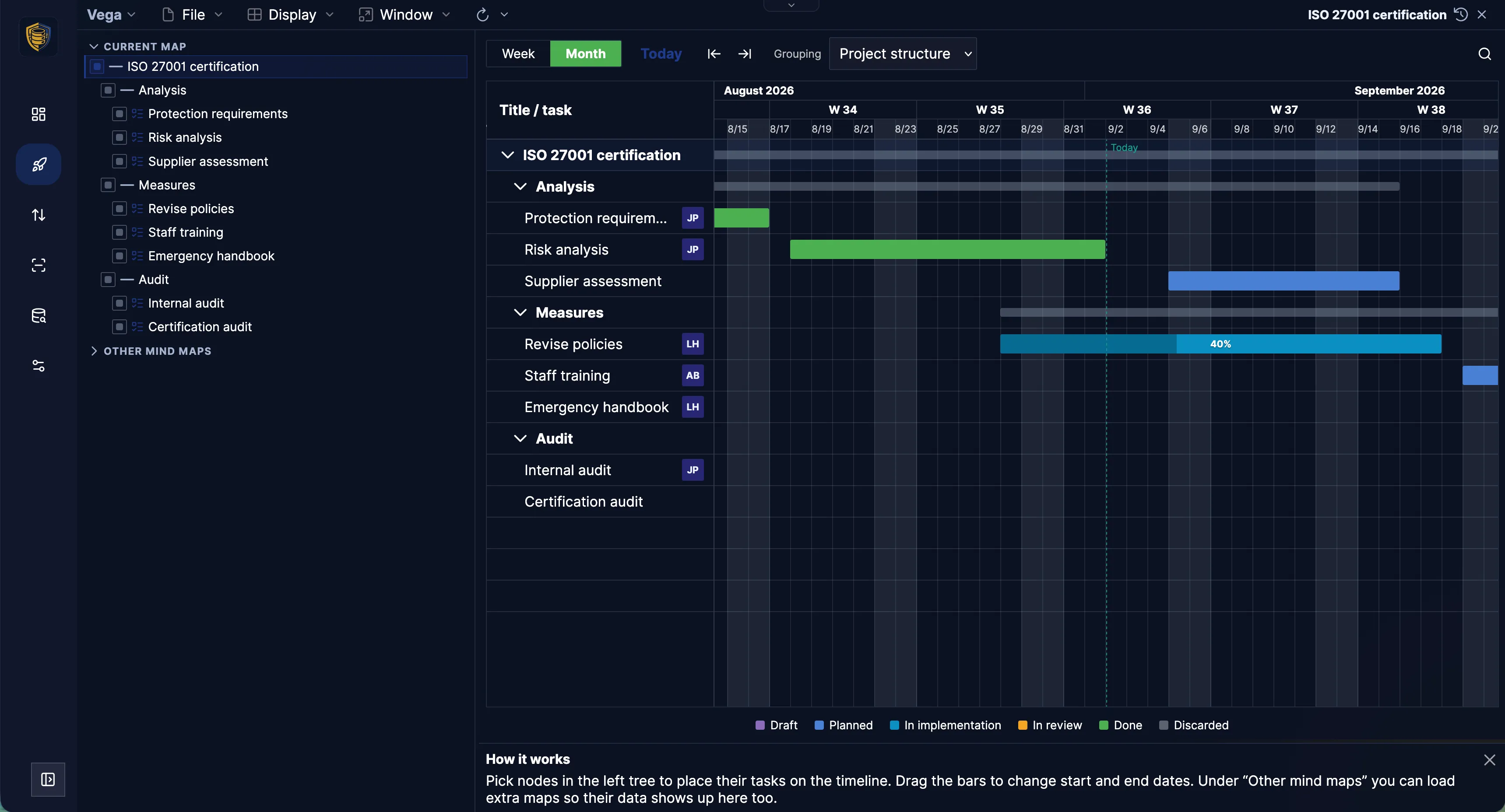
The schedule as a bar chart with a weekly or monthly grid and a today marker. Moving a bar shifts the dates; dragging its ends makes it longer or shorter. Group by project structure, resources, priority, or tags.
Spreadsheet
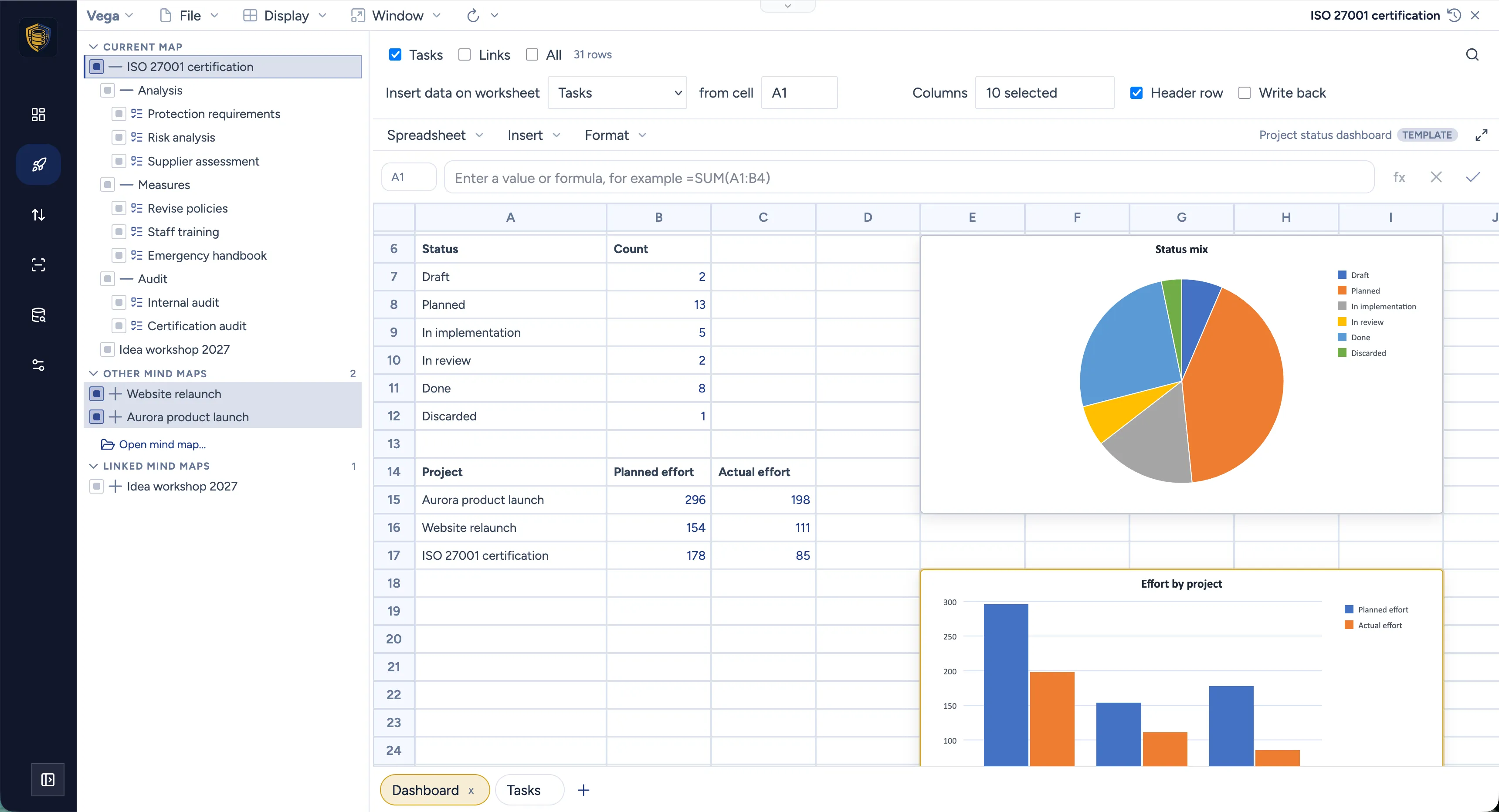
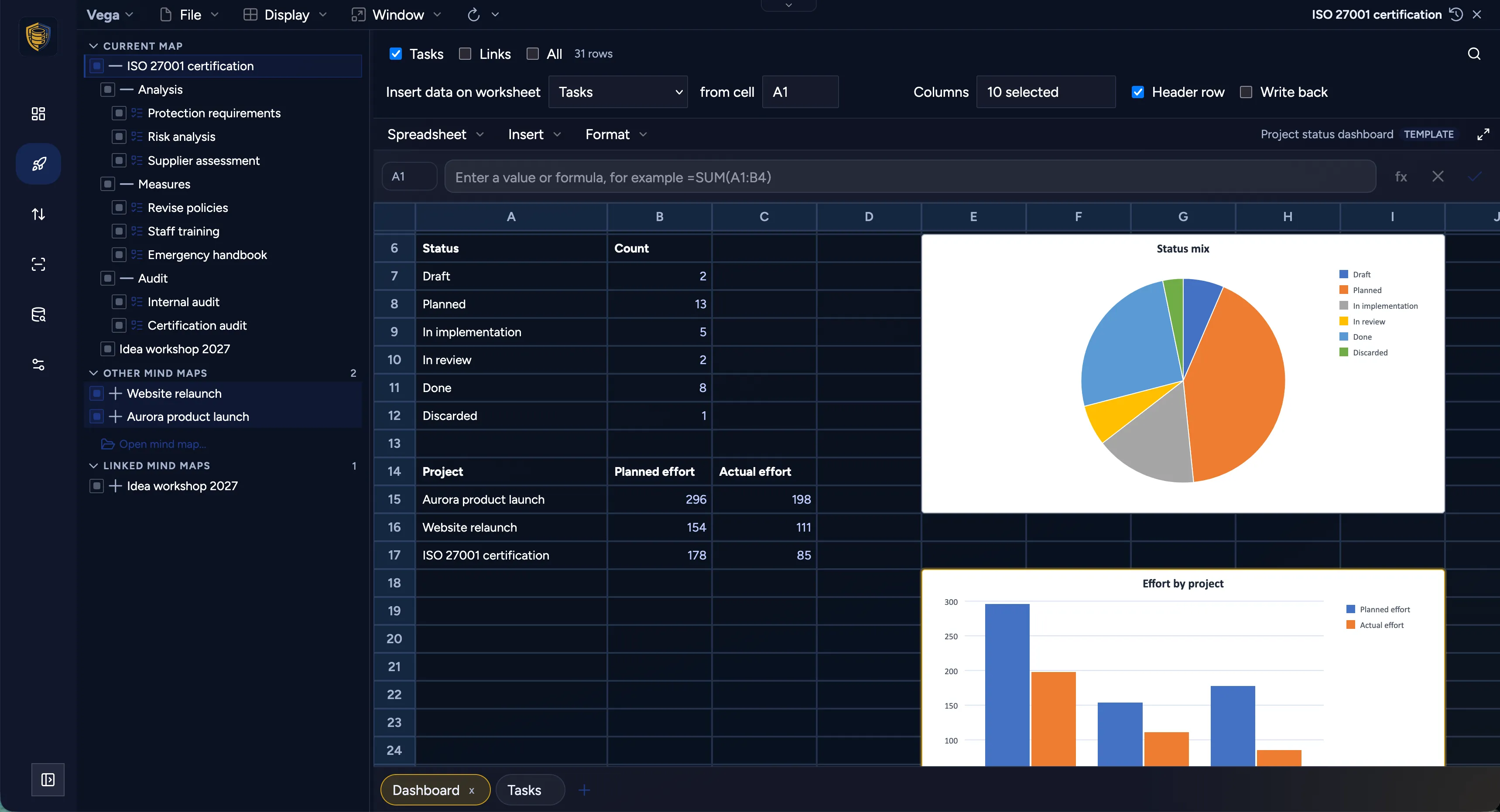
The same nodes as a real workbook: the fields you pick become columns, on as many worksheets as you like, with formulas and charts on top. The data block is rewritten whenever the selection changes, and Export → XLSX hands the workbook — charts included — to anyone who works in Excel.
What a node carries
Every node can hold both thinking and delivery data. A node without dates or an assignee is still a valid idea — filling those fields is how brainstorming becomes planning, not a different tool.
Markdown notes
A formatted body sits on the topic itself: the brief, the decision, the meeting outcome. No separate wiki page for the story of a task.
Attachments
Drop files from the desktop or the iPad Files app, or scan paper on a device that can. Documents and media open in a preview without leaving Vega.
Work fields
Assignee with suggestions from the directory, status and progress, priority, start and end date, plus planned and actual effort and cost with a currency.
Hierarchical tags
Nested with a backslash, so Launch\Design stays a path rather than a flat label. Tags hang a second structure — team, rooms, equipment — on the same nodes.
Links
A node can point at another topic, across maps too, or at a web address. One destination per node: either a mind-map target or a URL.
Appearance
Colours, shapes, fonts, and icons make the important branch findable. Callouts highlight what needs attention.
Properties as a docked sidebar
Properties can stay pinned to the right of the workspace instead of opening as a dialog every time — Display → Properties sidebar or Alt+Shift+Enter. The panel follows the selection and remembers its width, and on a phone it stays a dialog.
The Markdown editor sits right in that panel: headings, formatted text, tables, checklists, images and links — and Mermaid diagrams that are drawn where you wrote them, so a small flowchart lives on the topic it explains.
The node inspector, tab by tab
Several projects in one picture
On the left you pick the areas to evaluate — from the current mind map, from others you open alongside it, and from maps that hang off it through link nodes. Kanban and Gantt then show the tasks from all selected projects together and pick up every change automatically.
That is portfolio management without copying nodes into a reporting map and without a separate reporting tool. A launch plan, a website map, and a campaign can sit in one board or one timeline while each map remains its own document.
- Choose subtrees, not whole files
- Load extra maps into the same picture
- A portfolio map that gathers every project through link nodes
- No copies, no sync step, no reporting tool
- Group the timeline by resources to see how the work is spread across the team
Templates for the usual company path
When a project always starts the same way — the same phases, the same review gates, the same roles — save that structure as a template.
Mark a mind map as a template and it appears under New from template…. Starting a new project copies the tree, its notes, styling, and task fields into a fresh map. The template can live in one database while the new map is created in another, with the encryption and tags you choose for that project.
- A standard product-launch skeleton
- A website-release checklist
- An ideas-intake tree that later becomes real work
Project data in a spreadsheet — and back again
Vega carries the collaborative spreadsheet editor we introduced with Mindoo TeamGrid. Selected node data is mirrored into a real workbook, rendered locally in your browser, and can be worked on from there.
On the left you tick which parts of which mind maps are evaluated — the current map, other maps you have open alongside it, and maps reached through link nodes. Filter options and a search term narrow that set further, down to the nodes carrying a particular tag.
- Tasks, linked nodes, or all nodes — narrowed further by a search term
- Choose which fields become columns, and drag them into the order the sheet should show
- Say where the block starts, for example B5: your headings and totals above it survive every refresh
- The block is rewritten whenever the selection changes, so the numbers are never stale
The mirror works both ways
Editing a mapped cell writes back to the node, so the spreadsheet is a way to plan and not only to report. Switch write-back off and the block becomes a read-only report: the value you typed is replaced by the node's own again.
Evaluate, enrich, hand on
Column, bar, line and pie charts turn the block into a project evaluation inside Vega. Virtual views pull in data from anywhere else in MindooDB, and Export → XLSX passes the whole workbook on as a file.
The status over time, not only today
Changes sync to every device. History then lets you do two things a live board cannot.
Time travel
Open the map as it was on an earlier date — read-only — and see how the plan looked before the last reshuffle. Kanban and Gantt follow the same date.
Comparison
Put two points in time next to each other and see which nodes were added, removed, or changed: titles, task data, notes, appearance. A summary tells you how much of the tree moved between those dates.
When someone asks what slipped or what was added after the kickoff, the comparison is the answer.
What changed between two points in time
Because MindooDB keeps the history of every map, a comparison spreadsheet can report on two moments at once — two dates in the past, or the past against today.
You set the span with the time-travel slider and tick the projects and subprojects in the selection panel on the left. The node data is mirrored into two worksheets, “Old” and “New”. Neither of them writes back, because historical rows may not overwrite live nodes.
- The span comes from the history panel, so moving the slider refills both blocks
- A comparison worksheet pairs both blocks by node id, with a delta column for every number
- Excel's own formulas under their English names — XLOOKUP, MATCH, INDEX — so the workbook survives an XLSX round trip
- Column, bar, line and pie charts turn the result into a report on the period
Path and root subject are read from each block's own snapshot, so a node that has been moved since still shows where it used to hang on the left.
Print the plan as a poster
When the team needs the plan in a meeting room, tile the mind map or the Gantt chart across several sheets.
- Choose how many sheets wide and high
- A4, A3, or US Letter, portrait or landscape
- Vega scales and splits the content for you
- Every sheet carries a 1 cm glue strip with the neighbouring sheet’s number
- For a Gantt poster you also set the time range
Export
File → Export saves the open mind map as SVG or a single-page PDF, or as an outline in OPML or Markdown you can open in another tool.
On every screen
You work on a computer, a phone, or an iPad — the same tree, adapted to the viewport. On a phone the mind map stays spatial and touch-friendly, and Kanban remains a workable task flow on a narrow screen.
Private, and readable only by your team
Vega runs on the MindooDB Haven platform. Content is stored encrypted — the server operator cannot read it. When you create a mind map, you decide who may decrypt it.
Encrypted before it leaves your browser
Keys stay on your devices, unlocked by your passkey or your password. The server stores ciphertext and never sees the plaintext of your tree, your notes, or your files.
Recipients are part of the map
Who may decrypt a mind map is a property of that map, not an afterthought of a share link you forget to revoke.
Covers notes and attachments too
The encryption applies to the tree, the Markdown notes, and every attached document — not just the titles.
Local-first and offline
Your data lives on the device and syncs when there is a connection. Vega keeps working on a train or in a basement meeting room.
MindooDB is the local-first, end-to-end encrypted platform behind Vega. It is also available for self-hosting. About MindooDB · Website privacy policy
From nothing to a first plan
Vega runs in the browser on MindooDB Haven. You can try it without installing anything.
- 1
Open Haven
Follow the button below. Haven sets up your encrypted data area and installs Vega for you.
- 2
Unlock with a passkey
Haven preselects a passkey: unlock with Face ID, Touch ID or a security key — a password still works too. The key stays on your device; nobody at Mindoo can read your content.
- 3
Create demo data
Under Vega → Settings a button creates a few demo maps — launch, website, campaign, ideas — so you can try the path before you put real work in.
- 4
Start your own map
New mind map, or new from template if your organisation already has a usual project path.
The demo project maps already carry tags for team, company involvement, rooms, and equipment, so grouping the Gantt by tags immediately shows a second structure besides the tree.
Questions we get asked
Can Mindoo read my project data?
No. Content is encrypted on your device before it is stored, and the keys never leave your devices. The server holds ciphertext only, so the operator — including us — cannot read your tree, notes, or attachments.
Do I have to pay to try Vega?
No. Vega is free on Haven Community, and you can create a data area and work with real maps without a subscription. MindooDB Cloud is the paid managed sync layer for keeping several devices and people in step.
What exactly does the subscription cover?
MindooDB Cloud covers every app on Haven — Vega, Teacher's Desk, TeamSketchbook, and the rest — with sync across devices, offline use, end-to-end encryption, and 200 GB of storage per person.
Is the mind map really the same data as the Gantt chart?
Yes. There is one tree. Kanban and Gantt are views on it, so a date you change on a bar is the same field you would edit on the node, and a card you drag to another column changes that node's status.
Can I combine several projects in one board or timeline?
Yes. You select the subtrees to evaluate, from the current map and from other maps you open alongside it. Kanban and Gantt then aggregate them without copying any data.
What happens to my data if I stop paying?
The content is yours. File → Export writes the open mind map to SVG, PDF, OPML, or a Markdown outline, and MindooDB can be self-hosted, so you are not locked into our servers.
Which languages does Vega speak?
The application and this website are available in English, German, French, Spanish, Dutch, Italian, Polish, and Norwegian Bokmål.
What is MindooDB Haven?
Haven is the workspace that hosts Vega and the other MindooDB apps in your browser. It manages your encrypted data area, your identity — unlocked with a passkey or a password — and which apps are installed.
How do I sign in?
With a passkey — Face ID, Touch ID, Windows Hello, or a hardware security key — or with a password; both can be active at once, and a new user id starts with the passkey preselected. The passkey unwraps the key to your identity on the device itself, so there is nothing for us to store or reset. Make an encrypted browser backup before you remove the password, because an id that only opens with a passkey is lost together with the last device holding it.
Put your next project on one map
Brainstorm, assign, schedule, and review — on the same encrypted content, across as many projects as you need.